Thursday, 21 February 2019

How to Know If Someone Blocked You on Line 2019

How to Know If Someone Blocked You on Line 2019
Know If Someone Blocked You on Line 2019
1. Check by Starting A Multiperson Chat

The first tip that we turn to any official account for help is a good one. And if your friend has blocked you, no third party will know you have made this test. Go on and see how to start a chat with any official account and the one you want to confirm whether he/she blocked you.

1. Add an official account (the one with a shield and star logo beside the name).

2. Start a multi-person chat and invite your friend and the official account into the chat.

3. If it says empty room, you have been blocked by your friend.

The prompt of the empty room means you can't invite someone to a multi-person chat - then, unfortunately, you have been blocked by them.

Must Read: How to Recover Deleted Line Messages from iPhone >>


2. Check Your Friend's Home Page

If you were able to see your friend's Homepage, but for now you are no longer able to see the page at the same time that you cannot contact with them, probably you have been blocked by him/her. See how to confirm as below.

Go to your friend list.

Tap on the profile of the person who you think may block you.

Another window will pop up and you need to tap the home logo which will bring you to the person's home page in Line.

If it says "There are no shared moment, yet", however you could see the person posts in his/her homepage, then you have been blocked.

Note

This only works for those people who ever put ANYTHING on their Line home page.


3. Check with Sending Your Friend A Sticker

You can also try sending your friend a sticker as a test. If you are blocked, no matter what stickers you send, Line will not let you do that. See the specific steps.


Tap "More" icon to start with. Select "Sticker Shop" which is a paid service. (But don't you worry, you won't pay any money no matter your friend has blocked you or not.)


Select "Send as a Gift" option and choose the friend who you think has blocked you, and tap "Select".


If you get the prompt of "Purchase this Gift", then congratulations! You are not blocked! And you can really send your friend the sticker or just go back with no worry.


But if you get a prompt of "You cannot give these stickers to this user as he/she already has them". There are two readings: You have been blocked by the friend; Your friend really has the sticker already. And you can try the tip again to send more stickers to the friend. If always get the prompt, and then probably you have been blocked.


4. Check with Sending Your Friend A Theme

This tip is pretty similar with tip 3 and you don't have to pay any money. If you have been blocked, Line won't let you send any theme as a gift because it is not fair to charge users for sending a gift to someone who is not your friend, even. See the following steps.

1. Tap "More" icon to start with. Next is the way with "Theme Shop" which is also a paid service.

2. You can select any theme from the list. Here we take Hello Kitty Jewelry as an example.

3. Select "Send as a Gift" and select the person who you think has blocked you.

4. If he/she doesn't block you and doesn't have the theme, you can see the Send as a Gift.

5. But if the screen says "He/she already has this theme", then just like the way with Sticker, you cannot give the theme to your friend because He/she already has it or He/she has blocked you. You can just try with more themes to confirm.


If you discover a method, do let us know. And here will offer an additional tip for you to back up your Line data from your iPhone to the computer so that you can have a spare wheel ready all the time even your friend has blocked you on Line.
Additional Tip: Back Up or Print iPhone Line Messages Easily (iOS 12/11.4/11.3 Supported)

Sponsor ads:

Gihosoft Free iPhone Data Recovery:https://www.gihosoft.com/iphone-data-recovery-free.html

Gihosoft iPhone Data Recovery Free

Free iPhone Data Recovery Software for Windows/Mac

Recover up to 12+ types of files, including contacts, SMS, photos, WhatsApp, Viber, notes, etc.

Restore lost data from iOS devices directly or from iTunes and iCloud backup

Recover iPhone data lost due to iOS upgrade/jailbreak, accidental deletion, device lost or broken

Support all the latest iPhone, iPad and iPod Touch

Both Free and Pro version.

If you lost data after you updated to a new iPhone, you can always use Gihosoft iPhone Data Recovery to get the data back from the old iPhone or backup.You may also like: iphonerecovery.com

If you use android phones, please choose Gihosoft Android Data Recovery.

With Gihosoft Android Data Recovery, no longer afraid of data loss!

Must read:Youtube video downloader for pc

Gihosoft RePicvid Free Photo Recovery Software provides a free photo recovery software for windows to help users recover the deleted or lost photo for free.

Jihosoft Android Data Recovery: the best Android Data Recovery software for Windows and Mac to recover deleted contacts, messages, photos, videos, WhatsApp and etc from Android devices.Tips:How to transfer messages from iPhone to iPhone


jihosoft Free iPhone Data Recovery

Wednesday, 20 February 2019

How to Restore Lost iTunes Library 2019


There are several advantages to this method, including:


The fact that you can use more than one iDevice.


You don’t need to open up iTunes.


You can transfer files that you didn’t necessarily purchase.


It is fast and easy.


You can use any iOS device to do this.
Recover Lost iTunes Library Using iTunes

You can do the same thing with iTunes, but it has its limits. Here is how you do it:

Step 1: Close iTunes.

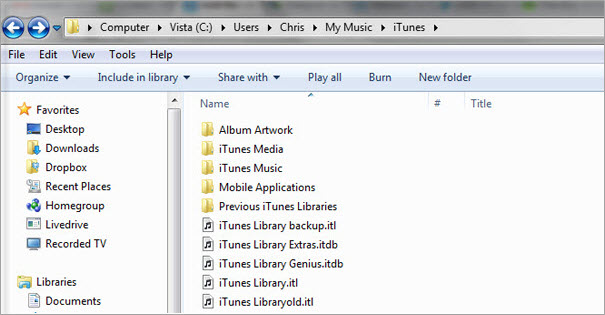
Step 2: Go to where your library file is. In Windows, this is \Users\[Username]\Music\iTunes. For Mac, you go to Go > Home, and then click to open your Music folder, then the iTunes folder.

Step 3: Take the iTunes Library.itl file and drag it to your desktop.

Step 4: Find the Previous iTunes Libraries folder and go into that directory.

Step 5: There should be a file named “iTunes Library [DATE],” where [DATE] is the date of when you last updated your iTunes library. It should be in a year, month, and day format.

Step 6: Copy the file and paste it into your iTunes folder.

Step 7: Rename the file “iTunes Library.itl” (without the quotation marks).

Step 8: Hold down the “Option” key (Mac) or “Shift” key (Windows) while opening iTunes.

Step 9: A dialog box should pop up asking you to choose a library. Click “Choose Library” and browse for the your new iTunes Library.itl file.


After that, iTunes should now be using your previous library. There are some limitations to this of course. For one, it takes a lot of time compared to using software like iMyFone iOS Transfer. Also, if none of your old libraries on you computer are satisfactory, then you’re out of luck.


Restore iTunes Library Using iTunes Match - Paid Yearly

iTunes Match is a nice service that will automatically back up your library to the cloud. Here is how you can use it to restore your library:

Step 1: In iTunes, go to where it says “Store,” then click “Turn on iTunes Match.”

Step 2: You will have to pay a fee every year: click “Subscribe for $24.99.”

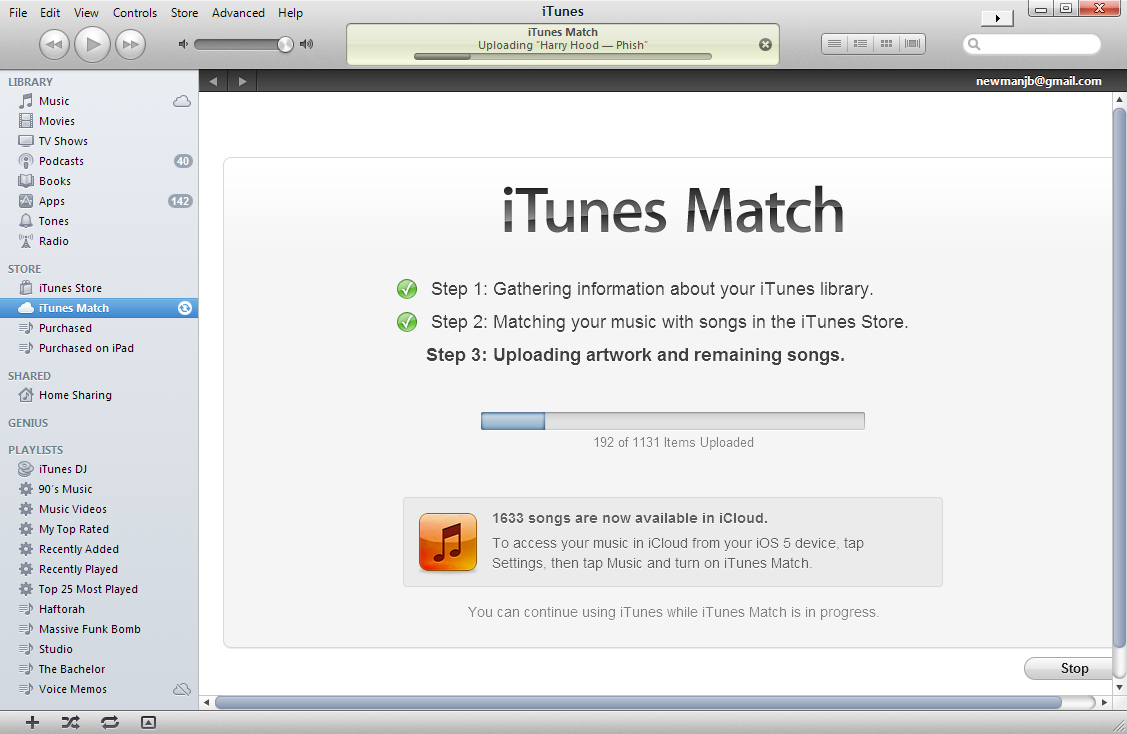
Step 3: Sign in and Match will go through your library and scan the files.

Step 4: Match will automatically store official music in your account. The rest of your files will need to be uploaded to the service; this will take a moment, depending on how many files you have.

Step 5: After it’s done, click “OK.”


Now you can use this backup to restore your library in the future, but of course this won’t do you much good after you’ve already lost your library. This is why preventative measures are important.

The main problem with iTunes Match is that it costs money. It’s fairly inexpensive, but if you don’t want to pay a recurring yearly fee, then try something else.
Restore Lost iTunes Library Using iCloud - Only for Purchases

You can also use iCloud, but this only works for purchases.

Step 1: Launch iTunes and go to iTunes Store.

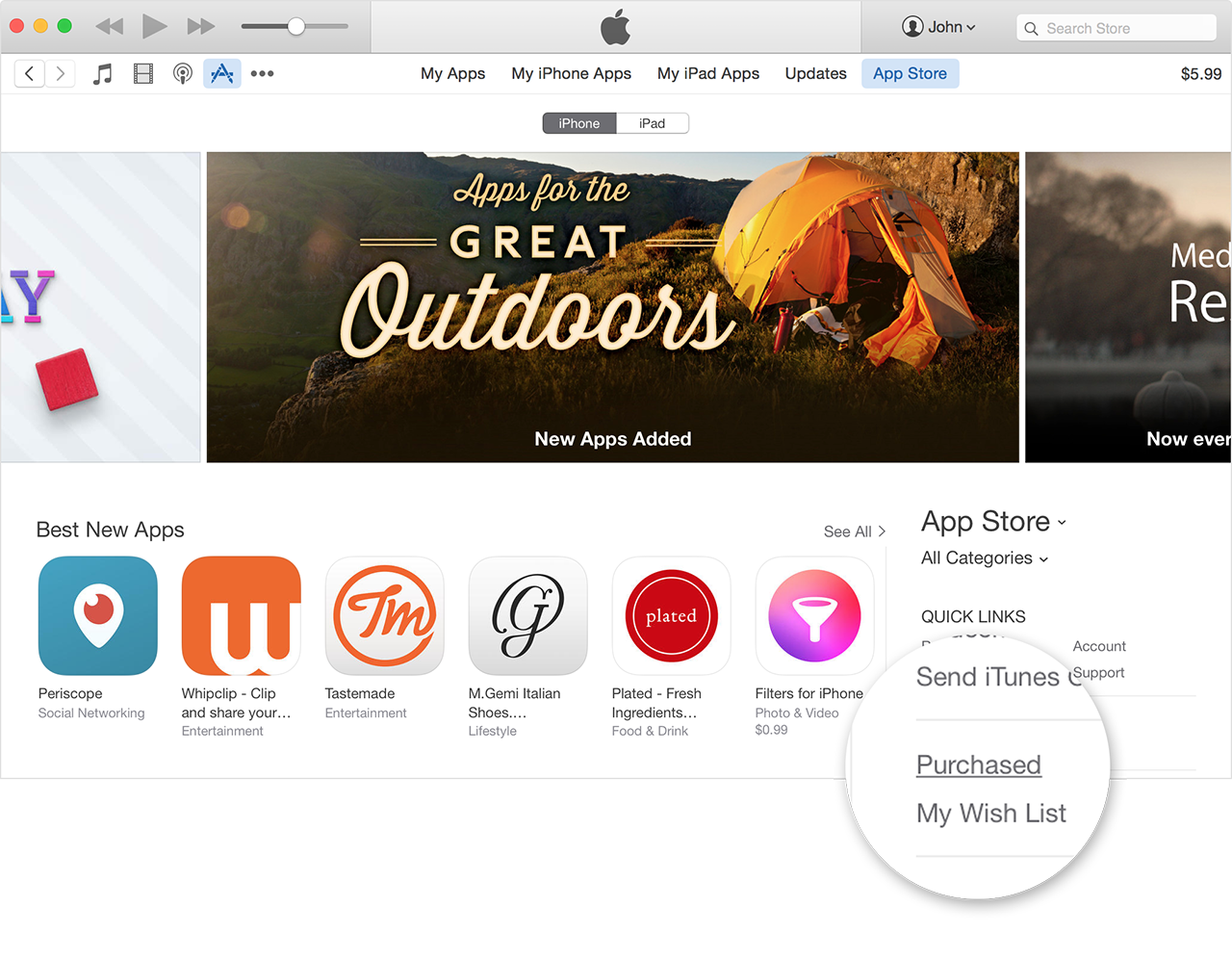
Step 2: Under “Quick Links” at the right-side of the screen, click where it says “Purchased.”

Step 3: Choose the type of media you want to download. You can do this by clicking buttons next to the listen types of media.

Step 4: After your purchases are listed, click on the download icon next to the music / media that you want to download. This should download the files to your iTunes library.


The main limitation of this method is of course that you can only transfer data that you purchased without losing it. All you can really do is just re-download your purchases. If you have a lot of files that you didn’t buy from the official store, then you won’t be able to get those back using iCloud.

Sponsor ads:

Gihosoft Free iPhone Data Recovery:https://www.gihosoft.com/iphone-data-recovery-free.html

Gihosoft iPhone Data Recovery Free

Free iPhone Data Recovery Software for Windows/Mac

Recover up to 12+ types of files, including contacts, SMS, photos, WhatsApp, Viber, notes, etc.

Restore lost data from iOS devices directly or from iTunes and iCloud backup

Recover iPhone data lost due to iOS upgrade/jailbreak, accidental deletion, device lost or broken

Support all the latest iPhone, iPad and iPod Touch

Both Free and Pro version.

If you lost data after you updated to a new iPhone, you can always use Gihosoft iPhone Data Recovery to get the data back from the old iPhone or backup.You may also like: iphonerecovery.com

If you use android phones, please choose Gihosoft Android Data Recovery.

With Gihosoft Android Data Recovery, no longer afraid of data loss!

Must read:Youtube video downloader for pc

Gihosoft RePicvid Free Photo Recovery Software provides a free photo recovery software for windows to help users recover the deleted or lost photo for free.

Jihosoft Android Data Recovery: the best Android Data Recovery software for Windows and Mac to recover deleted contacts, messages, photos, videos, WhatsApp and etc from Android devices.Tips:How to transfer messages from iPhone to iPhone


jihosoft Free iPhone Data Recovery

Tuesday, 19 February 2019

iPhone 7 Red: Release Date, Price, Details, Reviews


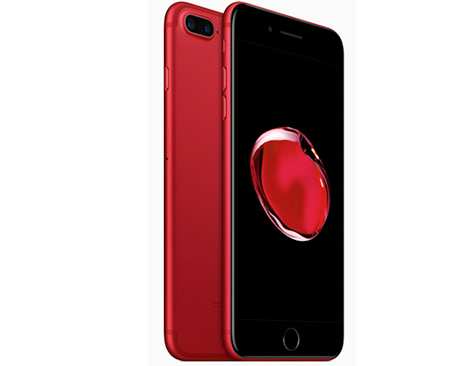
The trending news this period is that Apple has released a new version of its flagship iPhone 7 in a unique color of red. The release of the iPhone 7 red expands the range of options available for iPhone lovers.

The release of this unique brand of iPhone marks the positive partnership between AIDS Charity and Apple. Therefore, customers buying the red iPhone are contributing to the RED global fund which tends to tackle the problem of AIDs in some parts of the world.
Red iPhone Details

Officially, the red iPhone has been released and will be available online for customers to purchase starting form 24th March. It will come in two variants that is the 256GB model and the 128GB model.

The red iPhone 7 is expected to start at $749 from Apple store. It boasts of some top class features like aluminum design and rounded edges with white antenna which is placed across the back. Other features include Retina HD Display, Force sensitive home button, rear facing 12 MP camera and lots more.
Let’s Review the Red Hot iPhone 7
1 Design

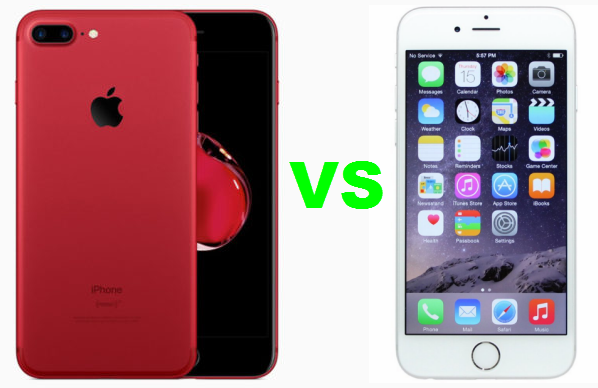
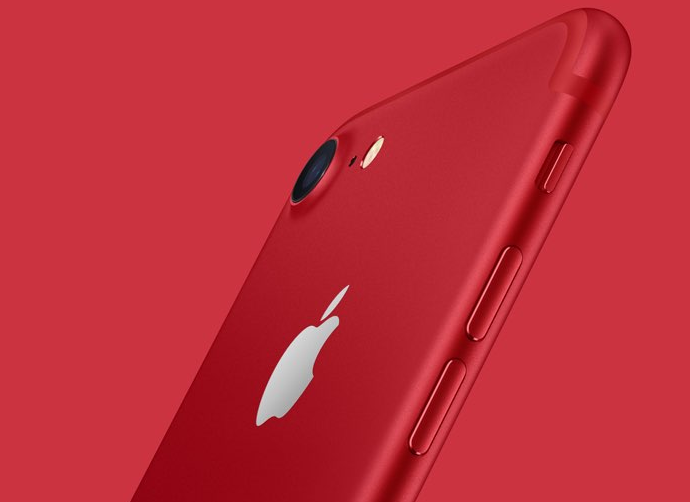
Looking at the design of the red hot iPhone 7, it is really difficult to actually tell the difference between its design and other iPhones like the iPhone 6s. Its difference is actually not noticeable because they are identical in shape and size.

However, the iPhone 7 is actually lighter when compared to iPhone 6s. There is a deviation from the design of the plastic antenna at the back like it is on iPhone 6 but this time, it is made a single line instead of a double line. The line is almost invisible when viewed in other colors like the black models but can be seen on the gold, silver and the newly released red iPhone.

There is a slight chance in the camera from the design in iPhone 6 as it is a little bit enlarged but you will have to hold the two phones side by side to notice it. The new iPhone has the headphone port removed and replaced by an extra speaker grill.


2 Headphone Socket Absent

This is a major noticeable difference when compared to the earlier iPhones. There is no headphone socket in the red iPhone 7. Like the other colors, you will have to plug your wired headphone into its charging port or use a wireless means to listen to music on the device. The implication of this is that charging your phone and listening to music at the same time is no longer possible.

However, this shouldn’t be a problem for the red iPhone 7 if you are have been using other colors of iPhone 7 before now. To make things easier, apple have made it in such a way that you can still use your old headphones with the red iPhone 7.Sponsor ads:

send anonymous text message from computer for free

Must Read:If you lost data after you updated to a new iPhone, you can always use Gihosoft iPhone Data Recovery to get the data back from the old iPhone or backup.

Gihosoft Free iPhone Data Recovery:iphonerecovery.com

If you use android phones, please choose Gihosoft Android Data Recovery


3 Home Button Redesign

This is different from the ones you have on iPhone 6. IPhone 7 including the red one makes use of a “Solid State” home button instead the clickable ones on the older models. This type of home button ensures that there is no movement when it is pressed but note that it is press sensitive. The essence of this radical change is to improve the water resistance of the phone by removing the spaces that allow water enter into the electrical components of the phone.

However, note that the new button design needs a human contact to work, therefore pressing it with gloves and nails will simply not work for it.


4 Water Resistance

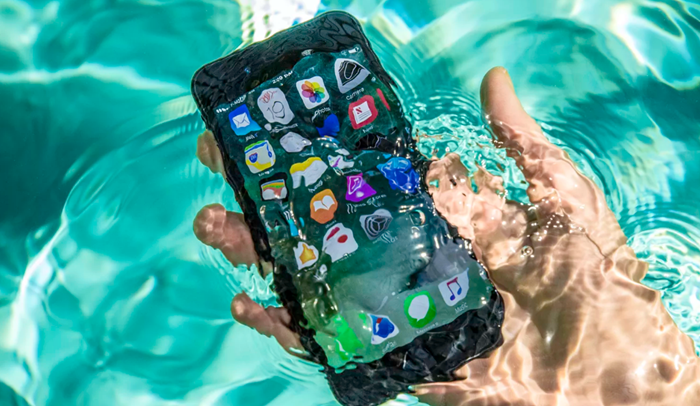
The red iPhone 7 like the other colors release before it is water resistant. In fact, it seems to withstand much more than other people think. It has a classification of IP67 which makes it survive deep into the tank. However, it is not expected that you swim with it. Things like drink splash, tea etc does not even affect it.


5 Camera

The camera of the red iPhone 7 is as good as the ones before it. It has some kind of background enhancement which allows it to capture even better photos. When compared to the iPhone 6 photo quality, it is safe to say that the red iPhone 7 produces better. Besides, it has a 7 Megapixel selfie camera which is better than that of iPhone 6


My Verdict

iPhone 7 remains one of the best and the red option has even given it a more appealing outlook. I really love this iPhone and there is no doubt about it. The newly released red iPhone 7 in my view is going to be loved because it is really “hot” and irresistible.

Tuesday, 12 February 2019

Average U.S. iPhone User Spent $79 on iOS Apps in 2018


Apple’s move to get developers to move to a subscription-based model for apps on the App Store seems to be paying off. A Sensor Tower report says that revenue generated by per active U.S. iPhone user grew by 36 percent — from $58 in 2017 to $79 in 2018.

That’s higher than the 23 percent growth registered from 2016 to 2017 but still lower than the 42% growth posted between 2015 to 2016.

Apart from the new subscription model, games also played a key role in increased user spending. Games accounted for almost 56 percent ($44) of the average $79 spent by every U.S. iPhone user.


Non-gaming categories also saw a healthy increase in their per-user generated revenue thanks to the use of a subscription model. The Entertainment category saw its revenue jump by 82 percent, from $4.40 in 2017 to $8 in 2018. Similarly, Music and Social Networking apps saw a 22 percent increase in per-user generated revenue, while apps in the Health category saw spending increase by 75 percent YoY in 2018.

With iPhone sales slowing down, Apple is now relying more on its Services sector for growth. An increase in user spending in apps bodes well for the company in this regard. App developers should also see this as a positive sign and perhaps consider switching to a subscription-based model for their apps and games.

The App Store posted single-day record revenues of $322 million on 1st January 2019 and raked in over $1.22 billion during the holiday week. This shows just how popular and important the App Store is turning out to be for Apple from a revenue viewpoint. No wonder then that the company is getting strict in its vigilance of apps that make it to the store.

[Via TechCrunch]

Must Read:If you lost data after you updated to a new iPhone, you can always use Gihosoft iPhone Data Recovery to get the data back from the old iPhone or backup.

Gihosoft Free iPhone Data Recovery:iphonerecovery.com
If you use android phones, please choose Gihosoft Android Data Recovery

Tuesday, 29 January 2019

iPad mini 5 May Support the Smart Keyboard and Apple Pencil


The iPad Pro started out as the only tablet in Apple’s lineup that supports the Apple Pencil.

That changed with the launch of the standard iPad, though. The entry-level model also supports the Apple Pencil, while the new iPad Pro upgraded to the second-generation Apple Pencil. Now, a new rumor suggests Apple may extend Apple Pencil support to additional iPad models. Developer Steve Troughton-Smith took to Twitter to hypothesize that maybe, just maybe, the oft-rumored iPad mini 5 may support the Smart Keyboard and Apple Pencil.

Troughton-Smith points out that the model numbers J210/J211 and J217/J218 appear to support both Apple’s accessories. However, in a potentially interesting turn of events, he also suggests in the first tweet that it’s possible both tablet models (the new iPad mini 5 and the equally as often rumored new entry-level iPad with thinner bezels) don’t feature Touch ID or Face ID. Troughton-Smith adds that he finds it hard to believe Apple would ship either model without any sort of biometric security measure, though.


Steve Troughton-Smith

✔@stroughtonsmith

It's hard to glean much information about J210/J211, and J217/J218, the upcoming iPad models. It seems like both iPad sizes support a Smart Keyboard and Pencil, but it's possible that neither include Touch ID (nor Face ID). Hard to imagine Apple shipping sans TouchID unless for $

28

3:32 AM - Jan 30, 2019

Twitter Ads info and privacy

See Steve Troughton-Smith's other Tweets

As noted in the follow-up tweets, Troughton-Smith says that it’s looking more likely that Apple will indeed include Touch ID. That would line up with earlier rumors regarding both new tablets, as far as design is concerned. It’s expected that the iPad mini 5 will look quite a bit similar to the iPad mini 4, and that while the new entry-level iPad may reduce bezel size a bit, not nearly as much as the new iPad Pro.

So, we could see some exciting things out of the less expensive iPad models later this year. On a person note, an iPad mini with Smart Keyboard and Apple Pencil support –with updated hardware– sounds about perfect. Let’s just hope the price tag isn’t too high.

[via @stroughtonsmith]

Sponsor ads:

Gihosoft Free iPhone Data Recovery:iphonerecovery.com

Free iPhone Data Recovery Software for Windows/Mac

Recover up to 12+ types of files, including contacts, SMS, photos, WhatsApp, Viber, notes, etc.
Restore lost data from iOS devices directly or from iTunes and iCloud backup

Recover iPhone data lost due to iOS upgrade/jailbreak, accidental deletion, device lost or broken

Support all the latest iPhone, iPad and iPod Touch

Both Free and Pro version.

If you lost data after you updated to a new iPhone, you can always use Gihosoft iPhone Data Recovery to get the data back from the old iPhone or backup.

Top 10 Best FRP Bypass Tools to Bypass Google Account on Android Device 2019

Worth reading:download youtube 1080p

Jihosoft Android Data Recovery: the best Android Data Recovery software for Windows and Mac to recover deleted contacts, messages, photos, videos, WhatsApp and etc from Android


If you use android phones, please choose Gihosoft Android Data Recovery

Monday, 21 January 2019

2019 Chinese hackers successfully activate China Unicom eSIM on iPhone XS


CHINESE IPHONE XS CAN SUPPORT ESIM

According to Charger Lab, a Chinese hacking team has successfully activated a China Unicom eSIM. What’s not known is the method employed by hackers to hack into iPhone XS.

Furthermore, the name of the hacker or the hacking team behind this hack is still not in the public. But considering China’s stance on dissidents, it’s fairly easy to understand why hackers have decided to stay anonymous.

An iPhone device that can successfully connect to an unsupported carrier is indicative of eSIM functionality being built into even in unsupported models.

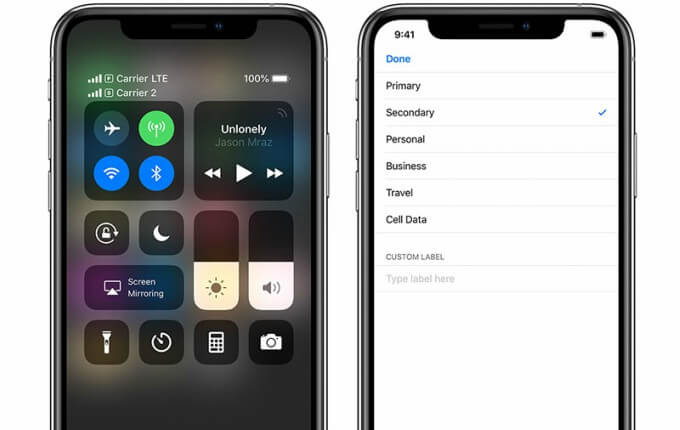
The image posted by Charger Lab on their Twitter account shows an iPhone XS. The primary carrier of the device is China Mobile whereas the secondary carrier is China Unicom (eSIM).


HACKERS USE DUAL SIM TRAY TO INSERT AN ESIM

For the uninitiated, Apple doesn’t sell eSIM-enabled iPhone models in China.

Out of all countries, only the United Kingdom, United States, India, and a few European countries currently allow users to avail the eSIM functionality, and that, too, on limited carriers.

In China and Hong Kong, iPhone XS, iPhone XS Max as well as iPhone XR come with a Dual SIM tray that allows the user to insert two nano-SIM cards.


To use China Unicom as the secondary network besides China Mobile, the hackers might have utilized the additional nano-SIM card slot to insert an eSIM.
OFFICIAL ESIM SUPPORT MIGHT BE IN THE WORKS

While end users won’t be getting this functionality anytime soon, official eSIM support in China could be in the works.

Both of the carriers in question are owned and operated by the Chinese state.

Ergo, we can expect official eSIM support on iPhone XS for China Unicom network along with other carriers. However, if that’s not the case, it’s highly unlikely we will ever see a similar third-party solution for the end user.

(Source – ChargerLAB)

Sponsor ads:

Gihosoft Free iPhone Data Recovery:https://www.gihosoft.com/iphone-data-recovery-free.html

Gihosoft iPhone Data Recovery Free

Free iPhone Data Recovery Software for Windows/Mac

Recover up to 12+ types of files, including contacts, SMS, photos, WhatsApp, Viber, notes, etc.

Restore lost data from iOS devices directly or from iTunes and iCloud backup

Recover iPhone data lost due to iOS upgrade/jailbreak, accidental deletion, device lost or broken

Support all the latest iPhone, iPad and iPod Touch

Both Free and Pro version.

If you lost data after you updated to a new iPhone, you can always use Gihosoft iPhone Data Recovery to get the data back from the old iPhone or backup.You may also like: iphonerecovery.com

If you use android phones, please choose Gihosoft Android Data Recovery.

With Gihosoft Android Data Recovery, no longer afraid of data loss!

Must read:Youtube video downloader for pc

Gihosoft RePicvid Free Photo Recovery Software provides a free photo recovery software for windows to help users recover the deleted or lost photo for free.

Jihosoft Android Data Recovery: the best Android Data Recovery software for Windows and Mac to recover deleted contacts, messages, photos, videos, WhatsApp and etc from Android devices.Tips:How to transfer messages from iPhone to iPhone


jihosoft Free iPhone Data Recovery

Thursday, 10 January 2019

How to Install Samsung Galaxy S9/S9+ Android Pie (One UI) Update


Samsung is now rolling out stable Android Pie-based One UI update for the Galaxy S9/S9+, much sooner than we expected. Here’s how you can download and manually install Samsung Galaxy S9/S9+ Android Pie update manually. This could be easily done by flashing the latest Android Pie firmware using Odin.


Android Pie is quickly getting released for several OEM devices. Samsung recently started beta testing for the Galaxy S9/S9+ and Note 9 via the official One UI Beta Program. Even the Galaxy S8 and Note 8 users have had the chance to install the One UI Beta build.


Also Read: 3 Methods to Update Android System Version


Android Pie update for the Galaxy S9/S9+ was expected to be rolled out in January 2019, but it seems Samsung has already released the update ahead of the planned schedule. The news broke in yesterday from SamMobile when two of their readers (one with Android Oreo and other with One UI beta installed) received the OTA notification of the Android Pie update.


The stable Android Pie-based One UI update comes with build number G960FXXU2CRLIand G965FXXU2CRLI for the Galaxy S9 and S9+, respectively. It has already started rolling out to the users in Europe, including Italy, Germany, and Switzerland. You can also force-check for the update by going to ‘Settings’ > ‘System Updates’.


Samsung data recovery


Since the update will be available gradually, it can take some time before it reaches each and every user. However, if you’re keen on getting your hands dirty, then you can follow the instructions below to manually install Samsung Galaxy S9/S9+ Android Pie Update. All you need to do is flash the available Android Pie-based One UI firmware using Odin. The method will work regardless if you have One UI Beta or latest Android Oreo firmware installed.


One UI Beta is available for:


One UI Beta for Samsung Galaxy Note 9 (OTA)


One UI Beta for Galaxy S8/S8+ (Snapdragon)


Contents [show]
Android Pie (One UI) Update for Samsung Galaxy S9/S9+ – Changelog


Samsung’s One UI on Galaxy S9/S9+ is definitely a big upgrade, not only does it brings Android Pie features to the device but also the complete overhaul of Samsung’s Android skin. The OTA update weighs 1744.24 MB, which is ordinary considering how massive the update is. It also carries the latest December 2018 security patches.


According to the release notes published by Samsung, the following is the full changelog for the Galaxy S9:


One UI


Content, settings, and other information have been reorganized to keep you focused on the task at hand.


Interactive elements have been moved to the bottom of the screen so they’re always within reach.


New designs and features such as Night mode help keep your eyes comfortable.


Notifications


You can reply to messages directly in the notification panel.


Image thumbnails are included in message notifications.


In an app’s notification settings, tap the switch once to turn on or off all the notifications in a category.


Samsung Keyboard


New Unicode 11.0 emojis are available.


New adaptive theme changes your keyboard look based on the colors of the surrounding app.


Floating keyboard is available in all apps and has a new size and transparency settings.


You can set a custom touch and hold delay.


Device care (formerly Device maintenance)


Performance modes are streamlined and integrated into power saving modes.


The Edge panel for device maintenance is discontinued.


Always On Display


New clock styles have been added, including the option to show a calendar with your schedule.


Charging information has been added to let you know how much time is remaining until fully charged.


You can show Always On Display whenever the screen is off, or you can set it to show for 30 seconds when you tap the screen.


Settings


Menus have been reorganized to make settings easier to find.


Samsung DeX


Continue using your phone while DeX is being displayed on a monitor or TV.Use Samsung DeX with supported HDMI adapters. No need for a DeX Station.


Bixby


Bixby is all new, with a range of improvements and new features.


Swipe left from the main Bixby screen to explore the latest features and supported apps.


You can control the Bixby key in settings to decide what happens when you press or double press.


Phone


You can now sort your call history by incoming and outgoing calls.


Your call history can include up to 2000 entries (increased from 500 entries).


Contacts


The new drawer menu makes it easier to manage contacts from various accounts.


Camera


The new Scene optimizer automatically enhances the camera’s color settings to fit the scene.


Gallery


Photo Editor Pro’s editing tools have been added to Gallery, so you can make all your edits and touchups without leaving the app.


My Files


The new storage analysis tool has been added to help you monitor your storage usage and save space.


You can now show or hide items on the My Files Home screen.


Samsung Health


Your daily step count will be shown in the notification panel. To hide it, press and hold the notification, then turn off Current steps.


Other improvements and changes


Turn on the screen automatically whenever you pick up your phone using the Lift to wake feature.


Access Kids Home on the quick panel.


Call stickers has been discontinued.


HEIF images are now supported.


As you can see, the changelog is quite massive and brings a lot of major and minor changes to the OS. With One UI on Samsung Galaxy S9/S9+, the company is focusing highly on one-handed usage and dark mode across the complete interface. Always-On Display now has new clock styles and also supports the calendar info.


Likewise, there are several improvements and feature-additions to almost all sections of the software.
Prerequisites


The process below will not wipe any data. However, we still strongly recommend that you take a complete backup of all your data on the phone including the internal storage. You can also follow our Android backup guide for this purpose.


Charge your Galaxy S9/S9+ to a sufficient battery level. This shall help avoid any sudden shutdowns during the update process.


Make sure that you install Samsung USB drivers on your PC


Download Odin 3.13.1 zip package and extract it on the PC
Download Galaxy S9/S9+ Android Pie (One UI) Firmware


Samsung Galaxy S9 (G960F – Exynos): Download link


Samsung Galaxy S9+ (G965F – Exynos): Download link
How to Install Samsung Galaxy S9/S9+ Android Pie Update


Download Galaxy S9/S9+ Android Pie (One UI) firmware


Extract the downloaded firmware file on the PC


Power off your phone completely


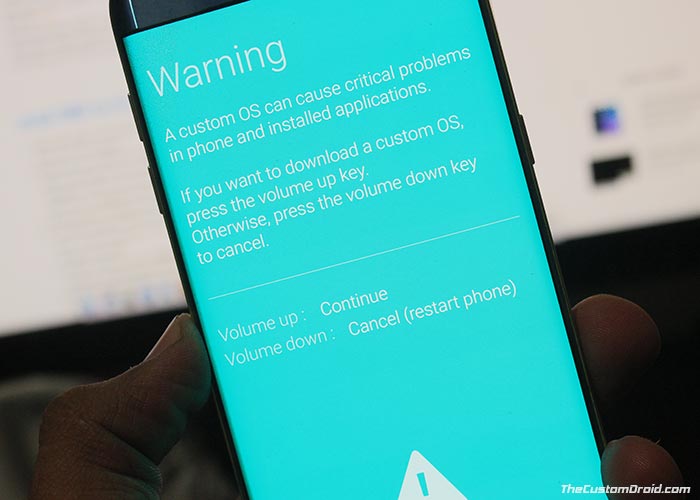
Hold the Volume Down, Bixby, and Power buttons together until you see the warning screen


On the warning screen, press the Volume Up button to enter Download Mode on your Galaxy S9/S9+


Connect your phone to the PC using the USB cable


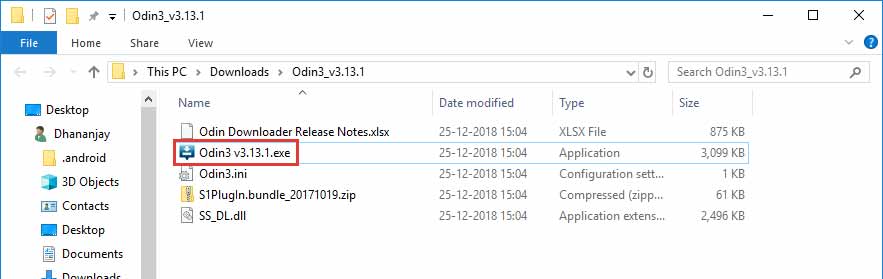
Open the folder where the Odin 3.13.1 zip file was extracted


Double-click on ‘Odin3 3.13.1.exe’ file to run the Odin tool


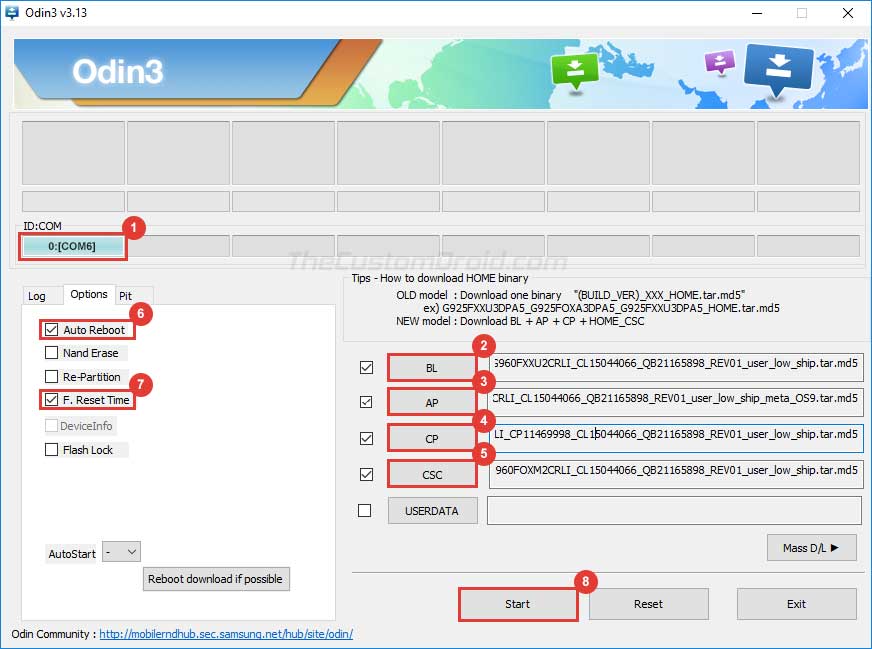
The ‘ID:COM’ port should light up ensuring that your phone is successfully detected by the tool


Now, click on the ‘BL’ button in Odin and select the firmware file starting with ‘BL_G960FXXU2CRLI’ for S9 and ‘BL_G965FXXU2CRLI’ for the S9+.


Do the same for ‘AP’, ‘CP’, and ‘CSC’ and select the corresponding firmware files.


In the case of ‘CSC’, make sure to select the ‘HOME_CSC’.


Once all the files have been selected, click on the ‘Options’ tab in Odin


Make sure that ‘Auto Reboot’ and ‘F.Reset Time’ have been checked


Finally, click on the ‘Start’ button to install Samsung Galaxy S9/S9+ Android Pie Update


After the installation finishes, you shall see the ‘PASS!’ message in the Odin tool window and your Galaxy S9/S9+ should reboot into the updated OS.


Although not mandatory, we strongly recommend that you perform a factory reset from the stock recovery or via the device settings. This shall avoid any unexpected issues after upgrading. Note that factory resetting will wipe all your data including the internal storage.


So, you have just been able to download and install Samsung Galaxy S9/S9+ Android Pie (One UI) update. If you have any questions regarding the process, make sure to drop a comment below.

How to Fix iPadOS Password Not Recognised Error

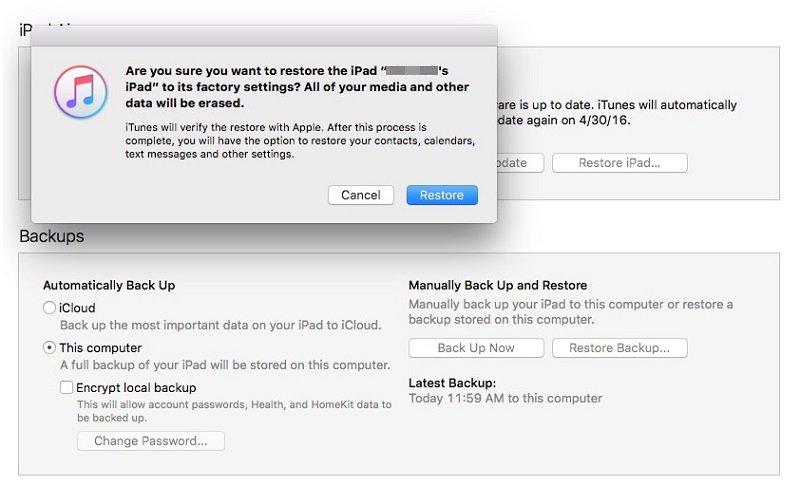
Restore iPad using iTunes to Bring Your iPad to Normal (Device Must Be Sync with iTunes Before) Although, the previous procedure is effectiv...