Saturday, 11 August 2018

Android 9.0 Pie copies iOS 11 – introduces new Lockdown mode


Android 9.0 Pie introduces “Lockdown mode”, an emergency mode that instantly disables biometrics and suppresses notifications. Surprisingly, this new feature borrows a lot from the SOS mode present in iOS 11.

Apple first introduced the emergency SOS mode back in 2017. A year later, a similar mode has appeared in the ninth iteration of Android.

Android Pie’s all-new Lockdown mode disables Android Smart Lock and biometric systems. Further, it also mutes any and all lock screen notifications.

Table of Contents


How Android Pie’s Lockdown mode works


iOS 11’s SOS mode vs Android Pie’s Lockdown mode


Wrapping up
HOW ANDROID PIE’S LOCKDOWN MODE WORKS

Unlike iOS 11, where the emergency mode is enabled by pressing the power button five times, Android 9.0 Pie requires the user to explicitly enable the mode first.

Here’s how you can enable and use this mode on your Android smartphone.


Activate the “Lockdown” option by navigating to Settings > Security > Lock screen preferences.


After holding the power button, a menu appears with a list of further actions. Herein you will find the “Lockdown” option alongside Power off, Restart, and Screenshot buttons.


Report this ad


This is bad UX because you never know when you might find yourself in a situation where you may need to instantly “lockdown” your device.
IOS 11’S SOS MODE VS ANDROID PIE’S LOCKDOWN MODE

iPhone users can put their device in lockdown or emergency mode simply by pressing the power button five times. On newer devices like iPhone 8 and iPhone X, users need to press and hold the power and volume buttons.


Once the Emergency SOS mode becomes active, biometric security (Touch ID or Face ID) is turned off and USB Restricted Mode is enabled.

Android’s Lockdown mode, on the other hand, turns off biometric scanners, disables Smart Lock, and suppresses lock screen notifications.

Since Android doesn’t have a native USB restricted mode (yet), anyone can access a “locked down” smartphone through USB.
WRAPPING UP

On the whole, the implementation of an emergency mode in Android 9.0 Pie is a great step forward. In spite of that, its complexity raises many questions about its usefulness.

If you can’t sync with iTunes and want to rescue data from a disable iPhone, you could try Gihosoft iPhone Data Recovery. Also feel free to ask questions on the iDevice is disabled error in the comments section below.

You may also like:


How to Rescue iPhone Photos and Videos When Stuck in Recovery Mode


How to Get iMessage on Windows PC


4 Easy Ways to Transfer Photos from iPhone to Computer

Thursday, 9 August 2018

7 Best Running Apps For Android devices

7 Best Running Apps For Android devices
Running is obviously one of the best ways to get into the shape. There are so many health benefits of running. It can strengthen muscles, improve cardiovascular fitness and also help you reduce weight. While other exercises may require equipment, running is simply one of the cheapest forms of exercise.

A lot of people search for a perfect gadget to track their running distance, running speed, and calories burned. So, let me remind you that the best gadget is something that you already have, a Smartphone. There are thousands of running apps available on Google Play Store for Android devices. All you need to do is to choose the best one out of thousands that suits your need.

In this article, I will share my picks for the Best running apps for Android. These Running Apps offer GPS tracking and also allow you to share your running stats with your friends.


Worth Reading: 9 Best Calorie Counter Apps For Android To Track Your Diet

How to Find or Track a Lost or Stolen Android Phone Quickly

Here are the Best Running Apps For Android Devices:


Runtastic


Endomondo – Running & Walking


Runkeeper – GPS Track Run Walk


Strava Running and Cycling GPS


Google Fit


Pedometer, step counter & weight loss tracker App


Running Distance Tracker+

1. Runtastic

Runtastic is one of the most popular running apps with more than 10 Mn downloads on Play Store. This App not only tracks running but also helps you track other activities like jogging, biking & walking. You can easily connect this App with other Apps such as Google Fit & MyFitnessPal. This Runner App has lots of unique features such as voice coach support, live tracking, support for different wearables, complete statistics, monthly workout tables and so on. All these advanced features make Runtastic suitable for beginners and veterans.


Highlights of “Runtastic”:


LIVE Tracking & Fitness Tracking (distance, time, speed, elevation, calories burned).


Voice Coach Support.


Android Wear Support.


Integrated music player.


Integration with Google Fit & MyFitnessPal.

Download

2. Endomondo – Running & Walking

Edmondo is one of the best running apps that is available on Google play store for free. With this app you can track 40+ activities including running, walking and cycling. This app is suitable for the people who are into different fitness activities. Know you running duration, speed, distance, calories burned, and more with this fitness app.
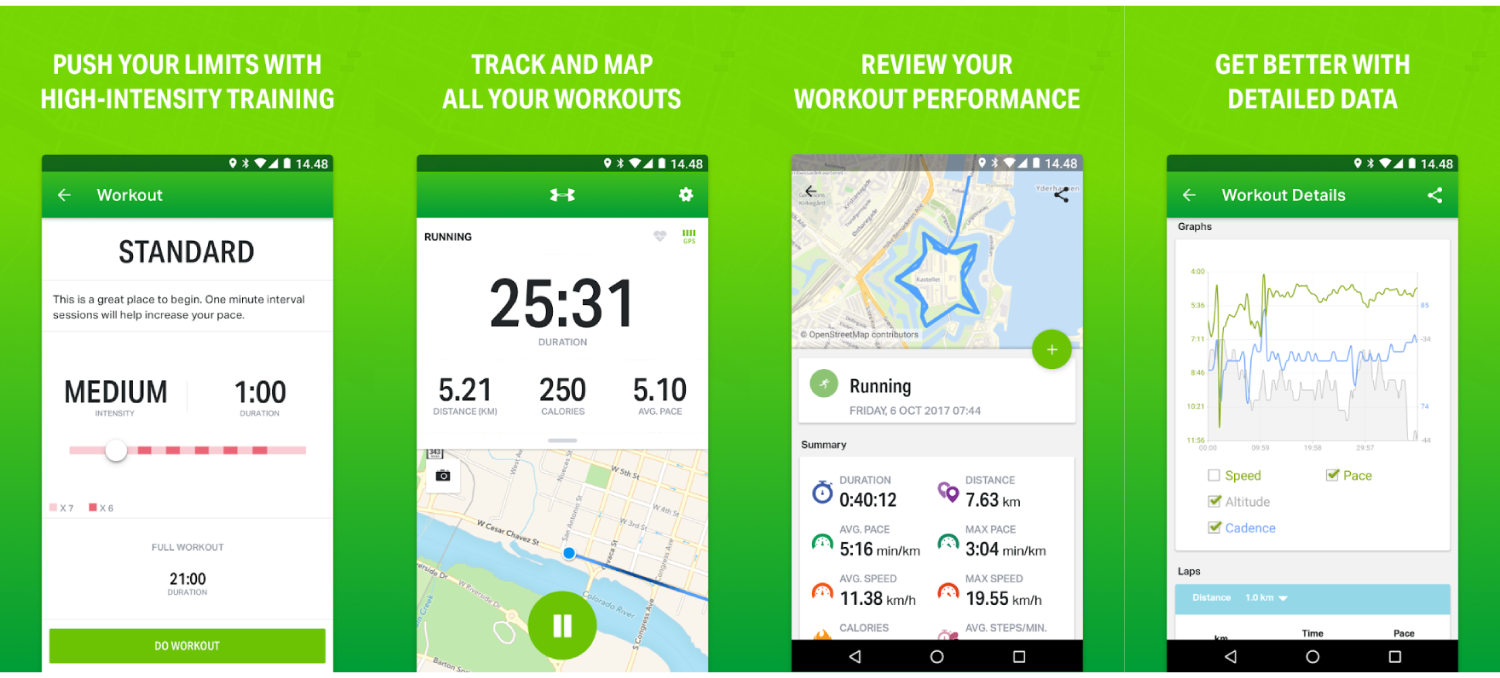


Highlights of “Endomondo”:


Track running, walking, cycling, and 40+ other activities using GPS.


Set a time, distance or calorie goal.


Connect with other fitness tracking apps like Google Fit and MyFitnessPal.


Use your favorite wearable devices(Android Wear, Garmin, Pebble, etc.).


Get Audio feedback.

Download

3. Runkeeper – GPS Track Run Walk

Runkeeper uses GPS of your phone to track running, walking, jogging, biking, or any other activity. The app has a simple and friendly interface which makes it really easy to use. Runkeeper offers many beneficial features that include exercise tracking, set goals, progress analysis, support for different wearables, audio cues, stopwatch mode, and social feactures.
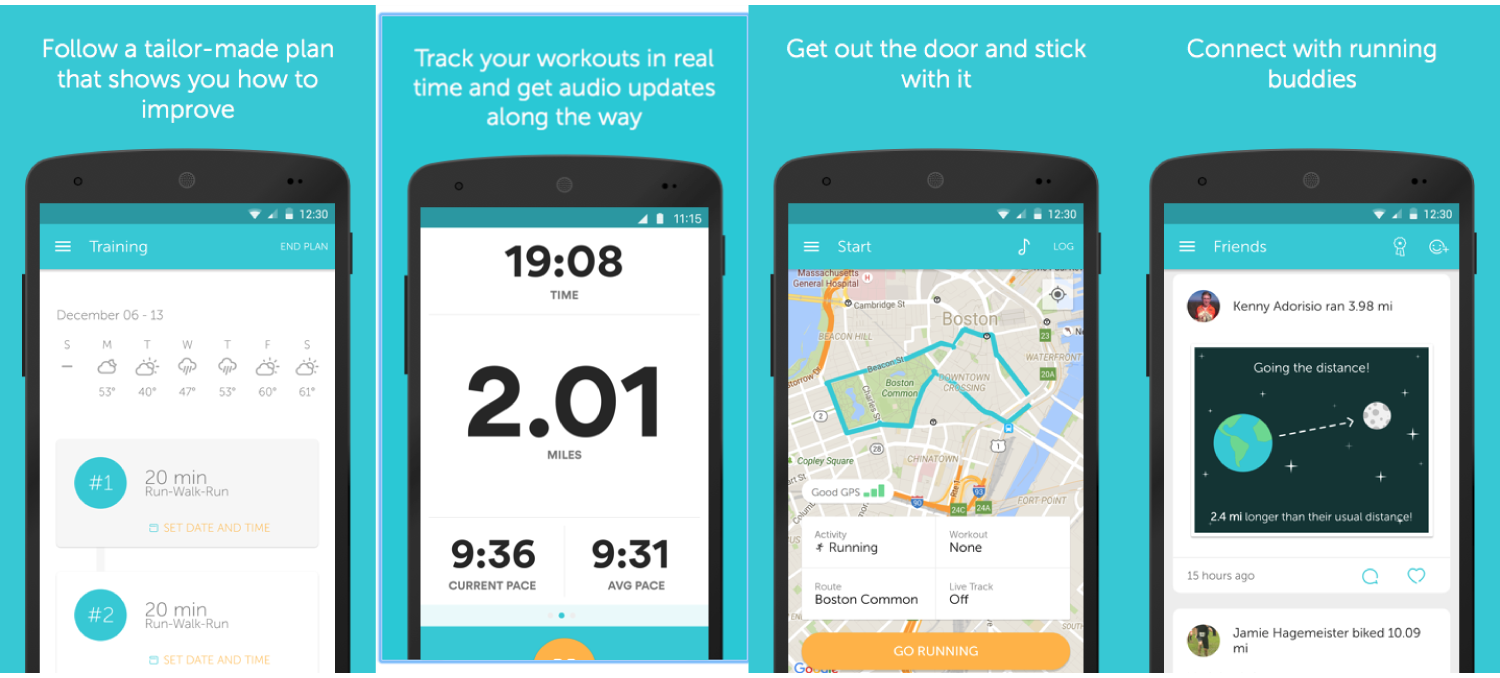


Highlights of “Runkeeper”:


Track run, walk, jog, bike and more activities using phone’s GPS.


Create a custom challenge.


Spotify and other health apps like Fitbit, MyFitnessPal integration.


Bluetooth Connectivity, Wearables support.


Social Sharing.

Download

4. Strava Running and Cycling GPS

Strava is a powerful fitness app that helps you track running, cycling and swimming. You can also measure how much distance you have covered, your running speed, elevation gained and calories burned during every run. The app provides support for many wearables and integration with other apps.
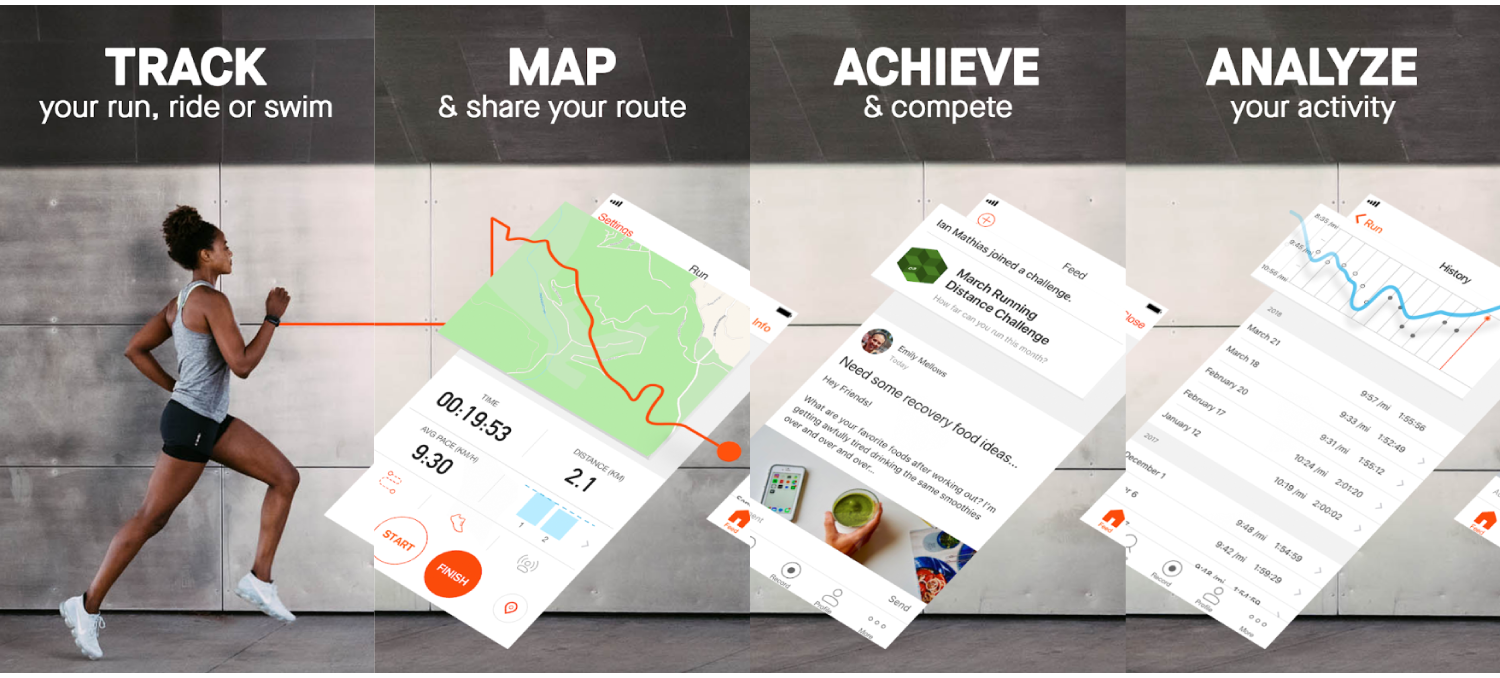


Highlights of “Strava”:


Track running, cycling, and swimming.


Measure distance, pace, speed, altitude gained and calories burned.


Monthly challenges.


Record routes.


Share the roadmap & photos of your latest bike drive with your friends.

Download

5. Google Fit

Google fit is one of the most reliable health & finess apps. It uses the in built sensors of your mobile phone to automatically track activities like walking, biking and running. The app provides realtime stats for your activities. It also supports most wearables that include Google, Nike+, Runkeeper, Strava, MyFitnessPal, Lifesum, Basis, Xiaomi Mi bands, etc.


Highlights of “Google Fit”:


Live stats for your runs, walks, and rides.


Set goals based on steps, time, distance, calories consumed.


Supports most of the wearables.


Measure your speed, pace, route, elevation, and more.


Recommendations and audio coaching for activity goals.

Download

6. Pedometer, step counter & weight loss tracker App

Pedometer is another great app that can help you track your step, walking & weight loss. This app also provides fitness plans and guides for losing weight & burning calories. You can pause step counter anytime you want. The pacer app comes with loads of customization options also adds support for other apps like MyFitnessPal and Fitbit. No need to walk alone when you can create walking groups with your friends & family.
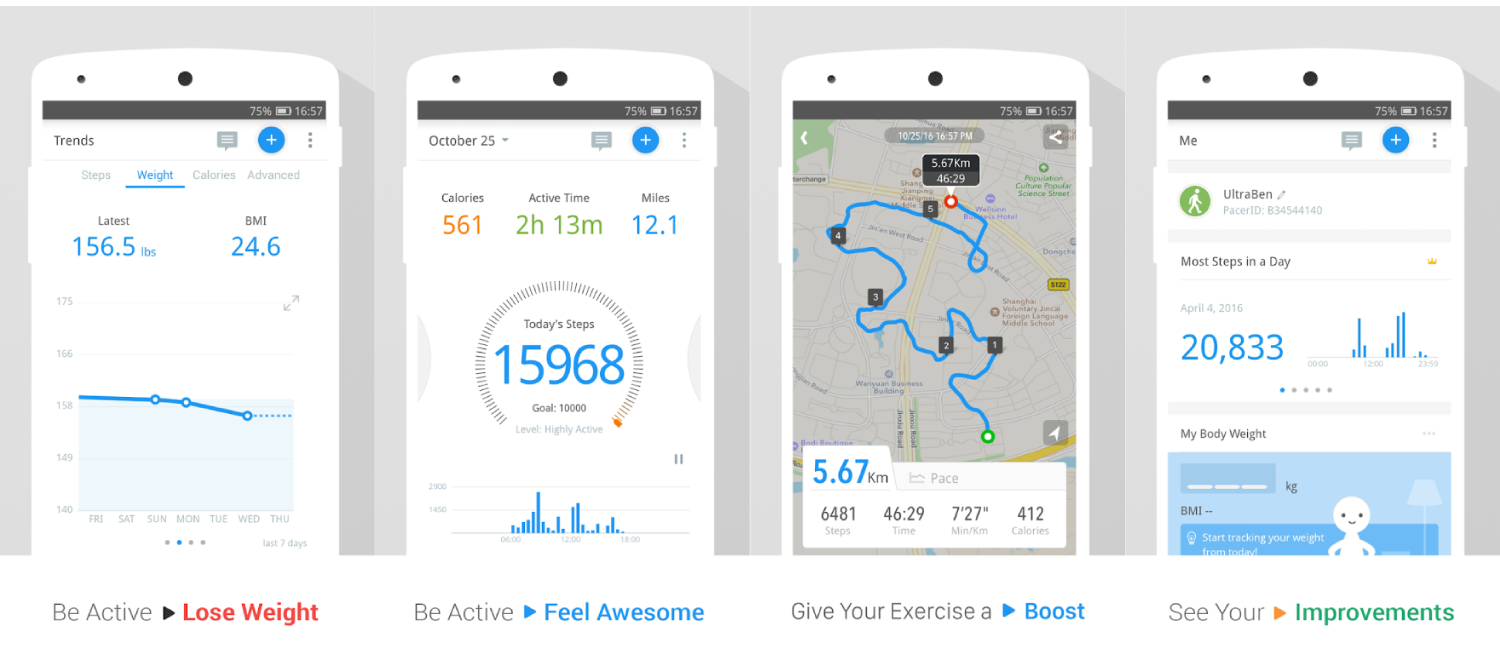


Highlights of “Pedometer”:


Complete fitness & Steps tracking along with calories, distance and active time.


Sync activity data with MyFitnessPal and Fitbit.


Exercise plans for health goals.


Audio and Video guide support.


Pause/Resume step counter anytime.

Download

7. Running Distance Tracker+

Running Distance Tracker+ accurately tracks your distance, pace, calories burned and more. This is very simple yet powerful fitness tracker app. This app syncs your favorite music and also guides(audio) you as you run towords your desination point.


Highlights of “Running Distance Tracker+”:


Voice feedback.


Average & current pace tracking.


Calories burned.


Fitness & distance tracking.


Music sync option.

Download

Related Posts:


Top 10 Ad Blocker Apps for Android

10 Best Free Audio Players for Android in 2018

Top 10 Best Instagram Photo Downloader for Androids

Top 10 Best Free Android Photo Editors in 2018


Have we missed any great running apps for Android? If yes then tell us about them in the comment box.

Gihosoft Total Video Converter is a professional all-in-one video tool that enables you to convert videos and audios into various different formats. You can also download videos from YouTube or other online video sharing sites and convert them easily. Plus, you’re able to personalize your videos with its inbuilt editor, such as, trimming, cropping, applying video effects, adding watermark, subtitles, and more. If you need a powerful and professional desktop video converter program, just download Total Video Converter and follow the step-by-step guide here to have a try.

iPhone is Disabled Error Fix Without iTunes Restore


iPhone is Disabled Error Fix Without iTunes Restore

Adding a passcode is the usual route taken to increase the security of your device. However, you can forget the passcode easily or a kid messed up the passcode or someone made a lucky guess, then the device is going to get locked. This is where you get the ‘iPhone is disabled’ message. However, there is no need to worry as we have your back.


How to Fix iPhone is Disabled Error Easily

If you make the passcode wrong 6 times of more, you’re going to see the message your:


iPhone 4 / 4S / 5 / 6 / 6S / SE / 7 / 7 Plus / 8 / 8 Plus / X is disabled


iPod touch 6G / 4G or 5G is disabled


iPad / iPad 2 / 3 / 4 / Air / Mini / Pro is disabled

Entering wrong passcode for the first few times gives you an option to try again after a few minutes, but after you keep making attempts but fail in the end, you get the message ‘iPhone is disabled, connect to iTunes’.

There are two options available to you on this instance and the situations possible.


Your device was synced with iTunes in a PC and there’s backup available with you.


Your device hasn’t been synced with iTunes before, or the computer on which you performed the sync isn’t near.


You have access to the iCloud account that’s connected with your device.
Fix #1: In case You have Synced your Device with iTunes

In this method, you can restore the device using the passcode.

Step 1: Connect the device to computer (the one you’ve previously synced the device to). iTunes is going to open it automatically, and the case it doesn’t, go ahead and open it yourself.

Note: If iTunes asks you to enter a passcode, connect the device to another computer that you’ve previously used for iTunes sync.

Step 2: In the bottom right section of iTunes, right click on the device and choose Back Up.


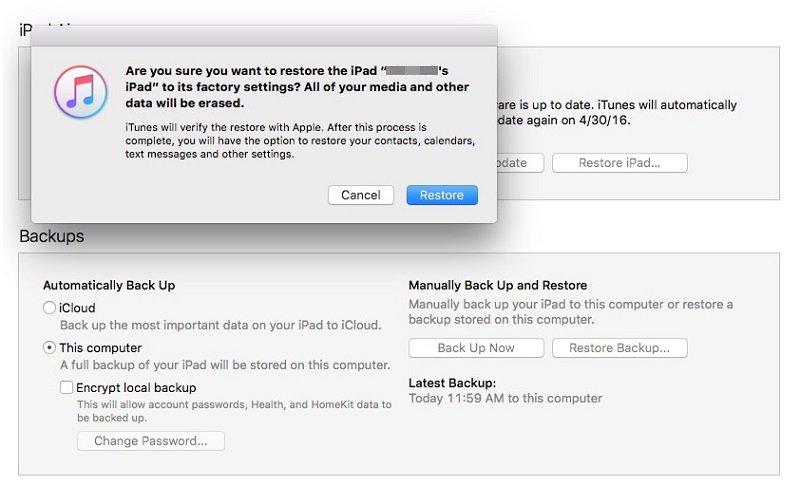
Step 3: Select Restore after the backup is complete. You can now use the latest backup to restore the device.
Fix #2: In case You have NEVER Synced your Device with iTunes

After the device is connected to iTunes, you’re going to see some errors such as ‘iTunes can’t connect to the device because it has a passcode applied. Enter the passcode before it can connect to iTunes’. Follow the steps below to put your iPhone in Recovery Mode & restore it with iTunes:

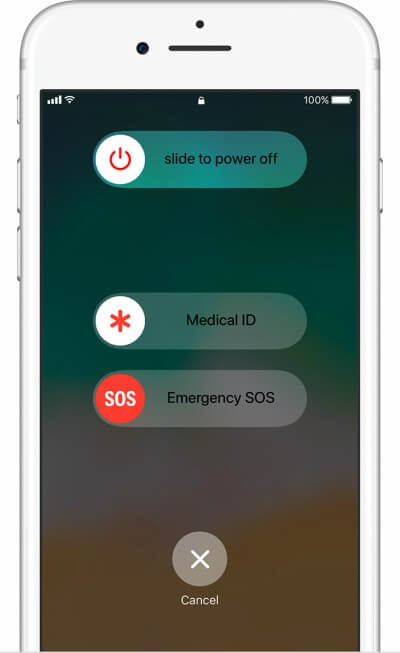
Step 1: Hold the Sleep/Wake up button to switch off the device until the slider comes up. Slide to switch off the device. You can also do this alternatively by holding Sleep/Wake button and the home button for a few seconds to switch off the phone.

Step 2: Connect the USB cable to iPhone but don’t connect it to computer. Launch iTunes on your PC or Mac.

Step 3: Press and hold the Home Button and connect the other end of the USB cable to the computer now (make sure iTunes is open at this time).

Step 4: Keep holding the Home button and wait for the device to switch on. After few minutes, the ‘Connect to iTunes’ will appear on the device. This is where you let go of the Home button.

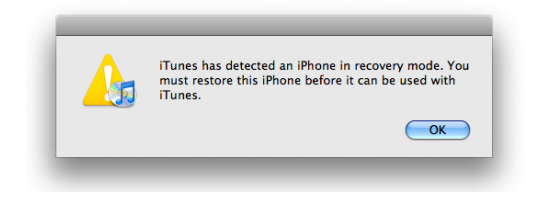
Step 5: iTunes should say that the device has been detected in Recovery Mode. Select OK and Restore for the device to be restored.


Below is a detailed video guide with all the steps on how to recover a disabled iPhone or iPad.
#3: More Methods to Fix iPhone is Disabled Error

If you’re aware of Find My iPhone, try restoring the device through Remote Wipe feature. If you currently keep an iCloud backup, try restoring the device through the latest backup available. This may reset the passcode.
Related Fixes & Guides

These are the ways you fix the iPhone disabled error. In order to avoid the issue altogether, you can regularly sync the device to iTunes. If you can’t sync with iTunes and want to rescue data from a disable iPhone, you could try Gihosoft iPhone Data Recovery. Also feel free to ask questions on the iDevice is disabled error in the comments section below.

You may also like:


How to Rescue iPhone Photos and Videos When Stuck in Recovery Mode


How to Get iMessage on Windows PC


4 Easy Ways to Transfer Photos from iPhone to Computer

Gihosoft Free Android Data Recovery can help you easily recover lost data such as photos, videos, contacts, text messages, WhatsApp & Viber chats from Google Pixel/XL or other Android phones effortlessly.

Any app suggestions or topic recommendations are appreciated in the comments down below.


Jihosoft Android Data Recovery: the best Android Data Recovery software for Windows and Mac to recover deleted contacts, messages, photos, videos, WhatsApp and etc from Android devices.

Any app suggestions or topic recommendations are appreciated in the comments down below.

Monday, 9 July 2018

How to Use Trackpad Mode On iPhone 6, 6 Plus, iPhone SE, 5s, or iPad in iOS 12

I used the trackpad on iPhone 6s. This makes it a bit more convenient to edit text. Until now, this handy feature has been limited to the device that supports this advanced touch technology. But this is no longer the case today. For a change, you can now use trackpad mode on all your iOS 12 compatible devices.


Keep in mind; some features will not work on the device that does not support 3D Touch. For example, you can not select a word or phrase by tapping on the screen.


How to Enable Trackpad Mode in iOS 12 on iPhone 6, 6 Plus, SE, or iPhone 5s and iPad Running iOS 12


Step # 1. Launch any application where you want to use the trackpad.


I will open the application Notes to test this feature. Now, display the software keyboard as you normally do.


Step # 2. To enter trackpad mode, you must press the Spacebar key and hold it down


Once this mode is activated, you can start the experiment.
Using Trackpad Mode on the iPhone SE or Earlier and iPad Running iOS 12


To enter text selection mode, simply tap a shaded area while pressing the Space key. Then you have to slide your finger over the text to select it. (On your 3D Touch compatible iPhone, you can tap the screen to select the text.)


Once the text is selected, you can go ahead and edit it as usual. Yes, you do not need to hold the space key to do it.


You can press the selection to access multiple formatting options such as Cut, Copy, Paste, Share Find, and more.


It's done.

Sponsor Ads:


Gihosoft Free iPhone Data Recovery is a professional iPhone Data Recovery software to get back all your lost text message, photo, video, call history, note, contact and more from iPhone/iPad/iPod Touch.
Gihosoft Android data recovery Free is a super awesome software specialized in Android file recovery. With this program, you are able to recover deleted photos, music, videos, messages, contacts, call logs, WhatsApp messages, Viber chat history and more from Samsung, Huawei, LG, HTC, Motorola, Google, Oneplus, Sony, Lenovo, ZTE and other Android devices directly. Meanwhile, this Android data recovery software is available for both Windows and Mac platforms.

Tuesday, 19 June 2018

How to Translate Webpages in Safari for iPhone and iPad


How to Translate Webpages in Safari for iPhone and iPad


How to Translate Webpages in Safari for iPhone and iPad


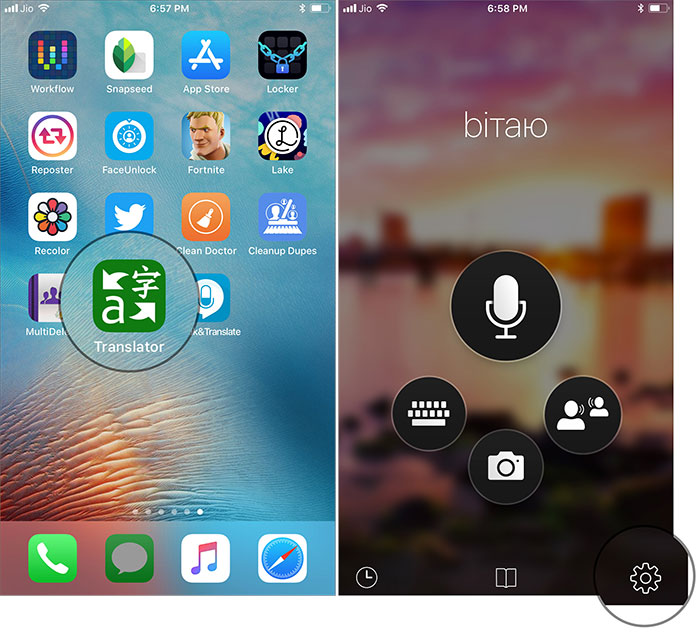
Though both the apps are up to the mark, we have found Microsoft Translator pretty easy-to-use and right on the money. It supports text translation in as many as 60 languages. The other notable features of this app include voice translation, multi-person conversation, phrasebook for verified translations, etc. Thoroughly impressed by its neat functionality, we’re going to use it in this tutorial.
Add Microsoft Translator Browser Extension to Safari on iOS Device


To get started, you need to first add Translator browser extension to Safari.


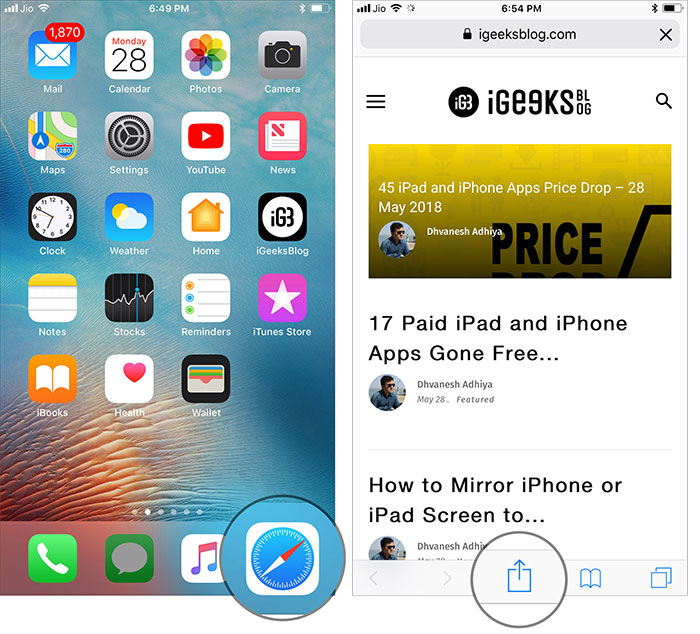
Step #1. First off, download Microsoft Translator on your iOS device. Then, open Safariand tap on the share button.


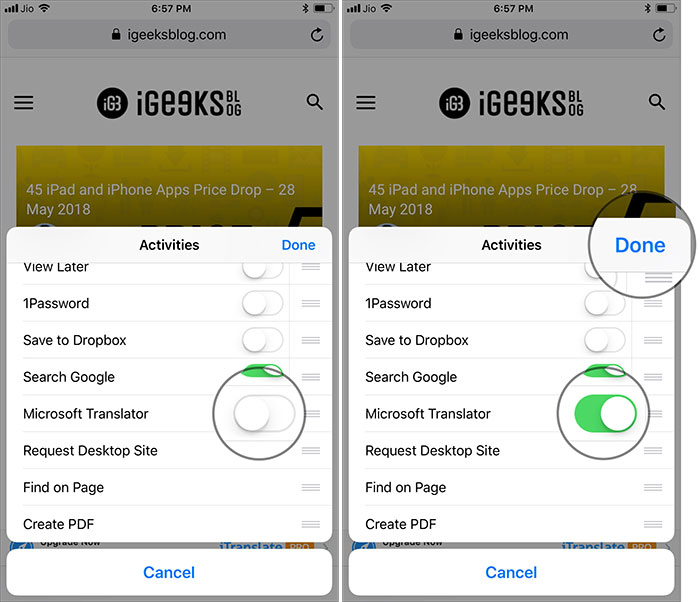
Step #2. Now, swipe left in the Activities row and tap on More button.


Step #3. Next, toggle on the switch next to your Microsoft translator app. Then, make sure to tap on Done button to confirm the change.


Sponsored Links


If you want to often use the app, simply drag it at the top so that you can quickly access it in the activities row.


All set? You may want to choose your preferred language. To do so, simply open Microsoft Translator app and tap on Settings icon at the bottom right corner.


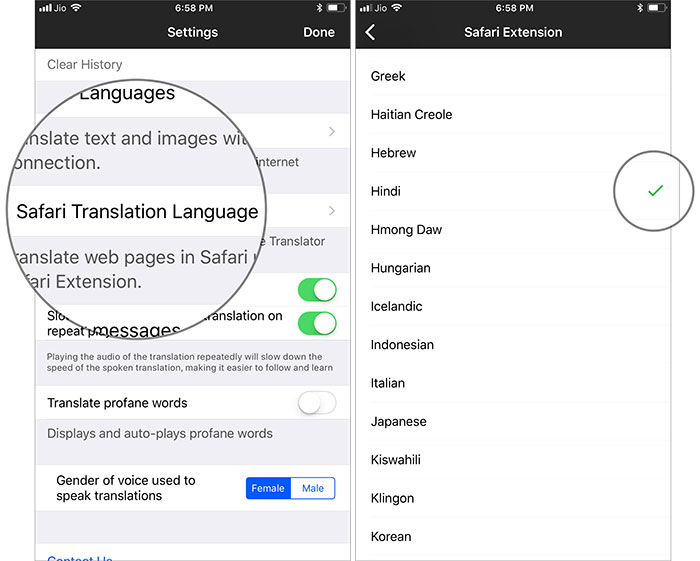
Then, tap on Safari Language Translation and select the desired language.


Translate Webpages in Safari


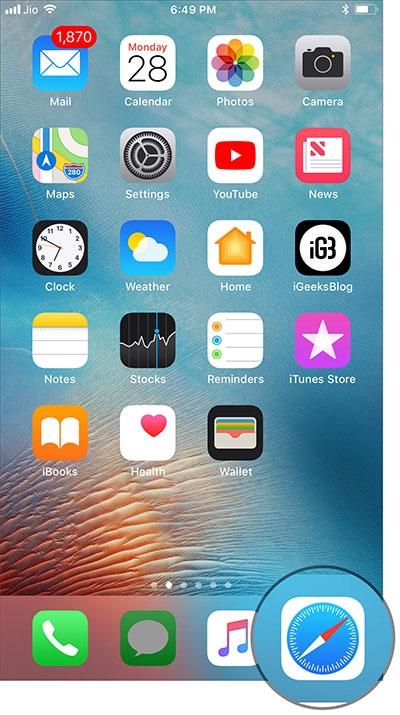
Step #1. Launch Safari on your iOS device.


Step #2. Now, head over to the site which article you want to translate.


Step #3. Next, tap on the share icon at the bottom.


Gihosoft iPhone Data Recovery is a professional iPhone Data Recovery software to get back all your lost text message, photo, video, call history, note, contact and more from iPhone/iPad/iPod Touch. It offers a full solution to recover your lost data in different tough situations. Besides recovering data directly from iPhone, iPad and iPod touch, it also allows you to recover data from iCloud and iTunes backup files.


Step #4. Next up, select Microsoft Translator.


Voila! Check out now, the webpage has been translated into your preferred language. You can repeat the same steps to translate other webpages.


Over to you:


From now onwards, use this highly user-friendly app to prevent the foreign language from becoming a barrier. And yes, if you come to know any other translators that work perfectly with Safari, do let us know about them as well.


I Bought More iCloud Storage But It’s Not Showing Up?

4 Tips to Fix iCloud Storage Not Showing Up Problem

  • Tip 1. Check with Apple
  • Tip 2. Sign Out of iCloud and Sign Back In
  • Tip 3. Hard Reboot iPhone
  • Tip 4. Reset Network Settings

1. Check with Apple

The first tip we would like to suggest you to do is checking with your Apple support team to know if there is any problem about iCloud server. In case there's a problem with the server, iCloud storage might not show up on purchasing. You can also check Apple System Status. This website shows which server or system is in maintenance.
apple system status

2. Sign Out of iCloud and Sign Back In

If still iCloud storage isn't showing up after you purchase more storage, sign out of your iCloud and then sign back in again. We hope this will work. The steps are:
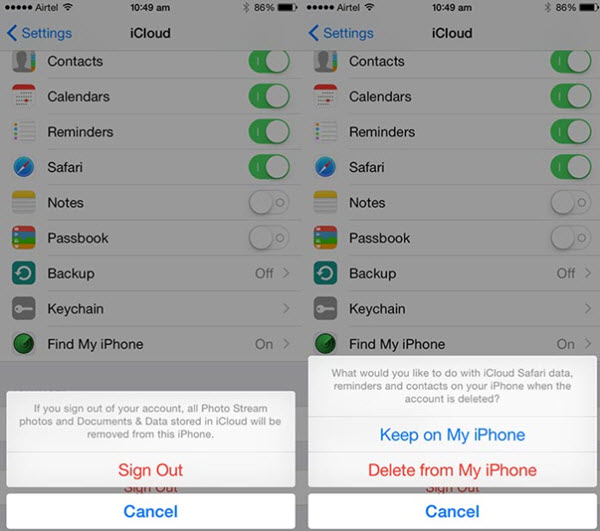
  • Open 'settings' and tap on Apple ID located at the top.
  • Now, scroll down to 'Sign Out' and tap on it.
  • Enter the Apple ID password after that. Hit on 'Turn Off' now and start sliding the toggle the buttons beside the data types that you want to keep in your iPhone.
  • Lastly hit on 'Sign out' and confirm it.
sign out iCloud
Now you can sign in again and see if the storage is showing up now or not. If not, follow the next tip.

3. Hard Reboot iPhone

It is the most common workaround and one can rely on it since it has helped many users who've done purchasing more iCloud storage but it's not showing up. The steps slightly differ with various models. We will show you the steps for each iPhone model.
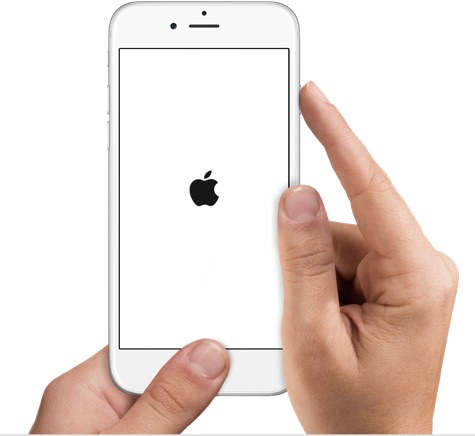
For iPhone 6 and previous models: Start pressing 'Power' and 'Home' buttons simultaneously. Keep doing until you get to see Apple logo on the screen.
hard reboot iPhone 6
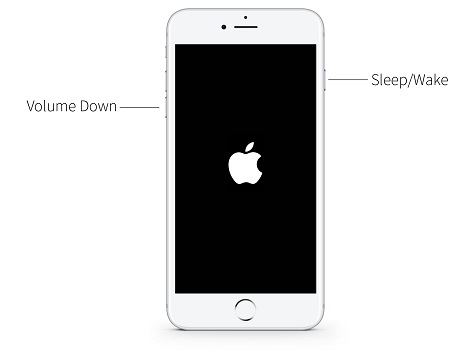
For iPhone 7/7 Plus: Hold down 'Power' and 'Volume Down' buttons at the same time. Release them when you see Apple logo.
hard reboot iPhone 7
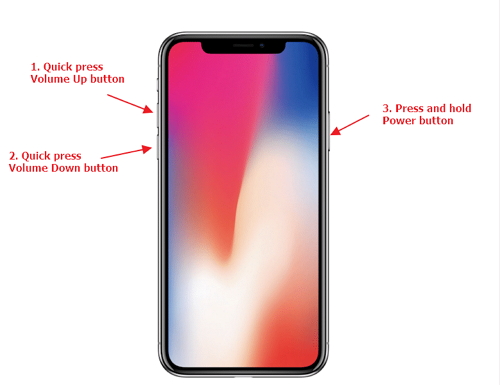
For iPhone 8/8 Plus/X: Press 'Volume Up' and release immediately. Press 'Volume Down' and release immediately. Now, long press 'Power' button until you get Apple logo on your screen.
force restart iPhone X

4. Reset Network Settings

When you've bought more iCloud storage but it's not showing up, there might be some issue with your network settings. Thus, we advise you to reset those settings once. This method will clear all your network settings so please ensure to take backup of them before proceeding.
  • Go to 'Settings' and tap on 'General'.
  • Scroll down to 'Reset' option and go to 'Reset Network Settings'.
  • Start entering your passcode and confirm the action by again tapping on 'Reset Network Settings'.
  • Gihosoft iPhone Data Recovery is a professional iPhone Data Recovery software to get back all your lost text message, photo, video, call history, note, contact and more from iPhone/iPad/iPod Touch. It offers a full solution to recover your lost data in different tough situations. Besides recovering data directly from iPhone, iPad and iPod touch, it also allows you to recover data from iCloud and iTunes backup files.

reset network settings

Which apps are compatible with iOS 12?


IOS 12 APP COMPATIBILITY EXPLAINED


Whenever Apple seeds a new beta update, a lot of apps break or simply become unstable.


Thankfully, almost all apps are supported this time around as iOS 12 Beta 1 is not a major upgrade over its predecessor.


The list given below is maintained by the community, so results might vary depending on the device used.


What works on your iPhone may not work on your iPad. If you come across an app that is not posted below, add it in the comments section below.


If apps that you use on a daily basis are already compatible, you should probably upgrade. If not, stick to the latest public version, that is, iOS 11.4 or below.


Once Apple seeds the public update in September, you can then freely update your Apple device.
COMPATIBLE APPS


ANZ Banking Australia


The CW


VPNHUB


1 Second Day


17Track


1Password


9GAG

AccuWeather


ACTIC


AdGuard


Adventure Communist


Aftenposten


Ally Mobile


Altibox TV Overalt


Amazon


Amazon Alexa


Amazon Prime Video


Anchor


Anylist


Arlo


Atlas


Audible


August (Smart Lock)


Authy


AZ Rockets


Banco de Chile (Mi Pass)


Bank of Scotland


Barclays UK Banking


BBC News


Bejeweled Classic


Big Day


Bird


Bitmoji


Bitworth


Blink


Blizzard Authenticator


Blockfolio


BMX 2


Bookly


Brain.fm


Burst Reddit client


Camera+


Carrot Weather


Chase


Chipotle


Clash of clans


CNN


Coinbase


Color Tube


ContinueOnPC


Cortana


Dagbladet


Day one


DEVONthink To Go


DirecTV Now


Discord


DJI Go 4


DNT SjekkUT


Documents by Readdle


Draw In


Draw Something Classic


Dropbox


Dune


Duolingo


eBay


Ecobee


Edison Mail


Enlight


Episoder


Etoro


Eurovision


Facebook


Facebook messenger


FaceTune


Fandango


Fastmail


Firefox


FitNotes


Flightradar24


Flipboard


Flying Arrow


Focalmark


Focus Keeper


Fox News


FoxSports Go


Fruit Ninja


GlassDoor


Gmail


Google


Google Assistant


Google Calendar


Google Docs


Google Drive


Google Hangouts


Google Home


Google Maps (CarPlay support is not currently available)


Google Photos


Google Play Music


Google Translate


Google Voice


HBO


Heads Up!


Hearing Test


Helix Jump


Hill Dash 2


Hjelp 113


Homebridge


HotspotVPN


HQ Trivia


Hue (Philips)


iFruit


IFTTT


iHeartRadio


IMDb


Imgur


Inbox


InkHunter


Instagram


Instapaper


Itslearning


Jump! Remote Desktop


Kahoot!


Knife Hit


Kolumbus Billett (Norwegian)


Kolumbus Reise (Norwegian)


Lappen


LastPass


LastPass Authenticator


Layout


Letterboxd


Life Cycle


Linkedin


Lively


Love Balls


Lyft


Mein Schiff 4 Bordfinder


Mein Schiff 5 Bordfinder


Mein Schiff 6 Bordfinder


Mobile Pass


MobilePASS+


MoneyWiz 2


MS Outlook


My Disney Experience


MySolarCity


NAB Banking App (Australia)


Narwhal for Reddit


Nationwide UK Banking


Natwest Mobile Banking


Nest


Netflix


Newsify


Night Sky


Nike Training


Nike+ Runclub


Norstat


Norwegian Altinn


Norwegian Bibliofil


Norwegian Digipost


Norwegian FINN.no


Norwegian Sparebank 1 SR-Bank Mobilbank


Norwegian Teoriappen


Norwegian Teoriappen Skilt


Norwegian Vipps


Norwegian YR


NRK


NYTimes


O2 UK


Oanda fxTrade


Outfolded


Outlook


Overcast


Pandora


Paprika 3 (crashes on iPhone 8)


PayPal


Peil (Norwegian)


Periscope


Photomath


Piano Tiles 2


Pinterest


Pixel Plex


Pixelmator


Plex


PNC Bank


Pocket Casts


Poke Genie


Pokémon Go


Postnord


ProCam


Proton Mail


PS App


Quizlet


Quora


Reddit


Reflectly


Rent.com


Revolut


Ring


Rise Up


Robinhood


Russ.no


Samsung Smart Things


Samsung Smart View Remote


Scotiabank


Screens


Simplenote


SketchAR


Skype for Business


Slack


Sleep++


Smart Life


Snapseed


Sniper 3D


Sonos


Spark


Spark by Readle


Speedtest.net


Spotify


Statens Vegvesen Bil og henger


Steam


StepsApp


Strava


Street View


Stringify


Swarm


Telegram


Telegram


Telia


Telia Soundmaker


Tesla


The Guardian


The Sandbox


The Weather


Thuuz Sports


Toggl


TradingView


Transmit


Truecaller


Tunnelbear


Tweetbot


Twitch


Twitch


Twitter


UNICORN


UT.no


Vellum


Venmo


VG


VMWare Airwatch (Exchange ActiveSync)


Walkr


Warframe


Waze


Weather Channel


Wells Fargo


Wemo


WhatsApp


WhatsApp


WiFi Photo


Wish


Workflow


Xbox


Xfinity Stream


Yelp


YouTube


YouTube


Zenly
INCOMPATIBLE APPS


Alien Blue


Amazon AWS Console


HSBC UK (crashes on launch)


Notability (not working only on iPad Pro)


OpenVPN (connection doesn’t work, connect from Settings > VPN to ensure connection doesn’t drop)


Pandora


Skype


Snapchat


Untappd (infinite page load)
UNSTABLE/BUGGY APPS


Apollo (not working on iPad 5 and media has a dark overlay)


Bank of America (app opens and lets you enter the security code but the app freezes afterward)


Battery Life (doesn’t display any data)


Fire Chat (layout not updated for iPhone X resolution)


Fire Up! (slight laggy startup on iPhone 7)


Fitbit (change watch not possible)


Fortnite (doesn’t launch every time)


Lirium Info Lite (battery health statistics do not show anything)


MS Outlook (buggy user interface)


Microsoft Office (Word, Excel, Powerpoint, etc.) (Office Lens opens up to splash screen, refuses to load and crashes on iPhone 6 and iPhone 8)


MyAniList (only works on TestFlight beta version)


Nexx Garage (layout not updated for iPhone X resolutions)


Notability (working with version 8.0.3 after deleting and reinstalling)


SPILLZ (slow startup)


Strava (doesn’t record activities)


The Cube (slow startup)


Tumblr (broken GIF images)


Check out our Twitter and Facebook pages for more iOS updates.
If you lost videos from iOS Camerall Roll which are nowhere to download again, you can use Gihosoft iPhone Data Recovery to get back deleted videos from iOS device including iPhone, iPad and iPod Touch.

You may also like:

How to transfer messages from iPhone to iPhone
Gihosoft iPhone Data Recovery is a professional iPhone Data Recovery software to get back all your lost text message, photo, video, call history, note, contact and more from iPhone/iPad/iPod Touch. It offers a full solution to recover your lost data in different tough situations. Besides recovering data directly from iPhone, iPad and iPod touch, it also allows you to recover data from iCloud and iTunes backup files.


How to Fix iPadOS Password Not Recognised Error

Restore iPad using iTunes to Bring Your iPad to Normal (Device Must Be Sync with iTunes Before) Although, the previous procedure is effectiv...